
Patient Links let your customers upload PD measurement photos directly to their Optogrid profile through a secure, unique URL. You generate the link, share it via email or text, and the patient submits photos through a guided form, eliminating email attachments, WhatsApp messages, and manual file organization.
Patient Links vs. Email, WhatsApp, and SMS
| Method | Organization | Security | Notification | File Size Limits | Professional |
|---|---|---|---|---|---|
| Patient Links | Auto-organized by patient | HTTPS encrypted | Automatic email | No limits | Yes |
| Manual filing | Varies | Manual check | 10-25MB typical | Moderate | |
| Mixed with messages | End-to-end encrypted | Chat notification | 16MB max | No | |
| Text/SMS | No organization | Not encrypted | Yes | Very limited | No |
Key advantages:
- No file size limits: patients can upload high-resolution photos without compression
- Automatic organization: photos link directly to the patient’s profile
- Email notifications: you receive an alert the moment photos are uploaded
- Professional experience: branded upload page instead of personal messaging apps
- HIPAA-friendly: patient data stays within a controlled system rather than unencrypted email. Under 45 CFR 164.312(e)(1), covered entities must “implement technical security measures to guard against unauthorized access to electronic protected health information that is being transmitted over an electronic communications network.”
How to Generate and Share a Patient Link
Step 1: Navigate to Patient Profile
Log into Optogrid and open the patient’s profile. For new customers, create their profile first (name, email, phone).
Step 2: Generate the Link
Click the “Get a patient link” button. Optogrid generates a unique, secure URL tied to that patient.
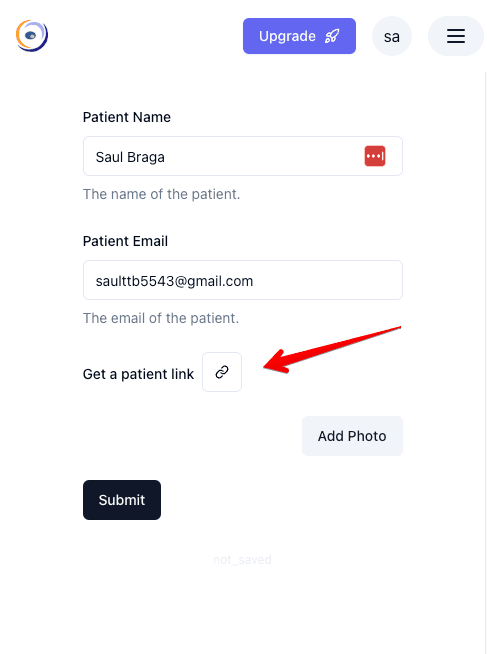
Each link is unique to the patient and their profile, so photos are automatically associated with the correct customer.
Step 3: Copy the Link
Click “Copy link” to copy the URL to your clipboard.
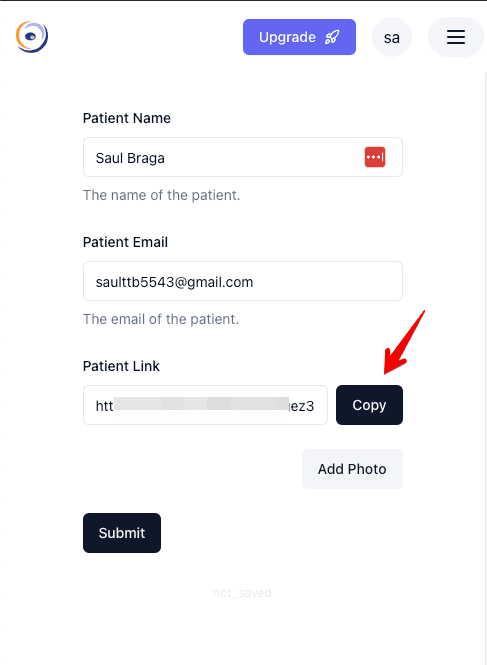
The link will look something like: https://app.optogrid.com/patient/abc123xyz
Step 4: Share with Your Patient
Send the link using the patient’s preferred communication method.
Email template:
Hi [Patient Name],

Please use the link below to upload your photos for PD measurement:
[paste link]
Instructions: 1. Click the link 2. Take two photos following the on-screen guide 3. Upload both photos 4. We’ll measure your PD and contact you within 24 hours Thank you! [Your Optical Shop Name]
Text message template:
Hi [Name], please upload your PD photos here: [paste link]
Follow the on-screen instructions. We'll contact you once measured. - [Your Shop]
WhatsApp: Use WhatsApp only to deliver the link. Have the patient upload photos through the link, not through WhatsApp directly.
Step 5: Wait for Notification
When the patient completes the upload, you receive an automatic email notification. No need to check manually.
What the Patient Sees
From the patient’s perspective, the process is simple and guided:
Step 1: Patient Clicks the Link
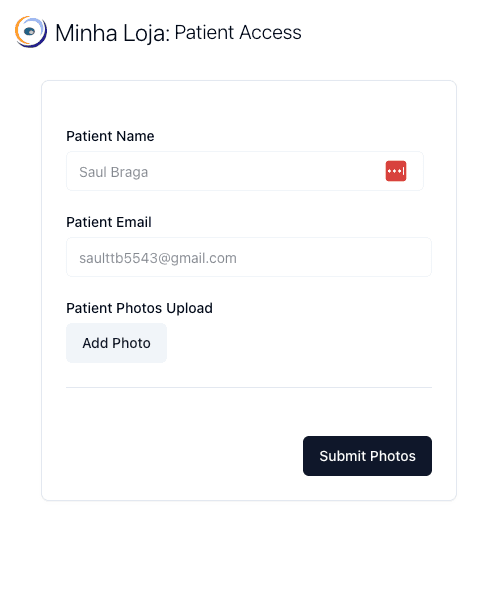
The patient opens the link on their smartphone or computer and sees a clean, branded upload page.
Step 2: On-Screen Instructions
The upload page displays clear instructions: what photos to take, how to position themselves, and photo quality requirements.
Step 3: Photo Upload and Submission
The patient selects or captures photos using their camera app, photo library, or webcam. Once uploaded, they click “Submit” and receive a confirmation message. You receive your email notification automatically.
No app download is required. Patients can complete this on any device with a web browser.
How to Access and Measure Uploaded Photos
- Receive notification: Optogrid sends an automatic email with the patient name, upload timestamp, and a link to their profile.
- Open patient profile: Click the link in the email or navigate to the profile manually.
- View photos: Photos are ready for measurement in the patient’s profile, already organized.
- Measure: Use Optogrid’s standard PD measurement workflow for single PD, dual PD, or segment height. Use Bridge Markers if the patient is wearing frames.
- Complete the order: Use measurements for lens ordering and contact the patient with results.
Troubleshooting Common Issues
Link doesn’t work
Resend the full URL (partial copies are the most common cause). If the link expired, generate a new one. Ask the patient to try a different browser if the issue persists.
Photos not uploading
Ask the patient to switch to WiFi, try a different browser (Chrome, Safari, Firefox), or compress photos if they exceed 50MB. Accepted formats: JPG and PNG.
No notification email received
Check your spam/junk folder. Verify your email address in Optogrid account settings. Check notification preferences. The photos may already be in the patient profile even without the notification.
Patient uploaded wrong photos
Review the photos and contact the patient with specific feedback. Generate a new Patient Link for resubmission. Include clearer instructions when re-sharing. If the submitted photo is slightly tilted rather than completely wrong, you may be able to salvage it using Optogrid’s image rotation tool to correct the angle before measuring.
Tips for Better Results
When sharing links, include:
- Brief instructions and what to expect
- Timeline for when they will hear back (e.g., “within 24 hours”)
- Photo tips: good lighting (natural light near a window), camera at eye level, remove eyeglasses unless measuring for lens replacement, include the reference object as instructed
Follow up if the patient has not uploaded within 48 hours. Verify photo quality before starting measurement. For reference object setup, see Custom Reference Registers.
Frequently Asked Questions About Patient Links
Can a patient upload photos multiple times using the same link?
Yes, patients can use the same link to upload additional photos. However, new uploads replace previous ones in the same session. If you want to keep both sets, ask the patient to contact you before uploading again.
Do Patient Links expire?
Links can be configured to expire after a set period in your settings. By default, links remain active until you manually deactivate them, allowing patients to submit at their convenience.
Can I revoke or deactivate a Patient Link?
Yes. Deactivate a Patient Link from the patient’s profile at any time. Once deactivated, the link no longer accepts uploads.
How many photos can a patient upload per link?
Patients typically upload 2-3 photos per session (frontal view, reference object view, and optionally a side view). The system supports multiple photo uploads in a single submission.
What if the patient doesn’t have a smartphone?
Patients can use any device with a web browser and camera: smartphones, tablets, or computers with webcams. For patients without a camera-enabled device, arrange an in-person measurement.
Can I send the same link to multiple patients?
No. Each Patient Link is unique to one patient and their profile. This ensures photos are automatically organized correctly. Generate a separate link for each patient.
Will patients need to create an account or log in?
No. Patient Links work without requiring patients to create an account or log in. They click the link, upload photos, and submit.
What happens to photos after measurement?
Photos remain in the patient’s profile for your records. You can delete them manually, or they will be retained according to your data retention policies.

I grew up inside an optical shop. My mother likes to tell how, as a kid, I would watch eyeglasses being assembled, play with the tools, and draw on the back of service order slips. The family business taught me early what a precise measurement and work done right are worth.
I went on to spend more than twenty years as a software engineer, always keeping an eye on the optical world. Optogrid was born where the two meet: digital measurement technology (pupillary distance and fitting heights) built by someone who knows the dispensing counter from the inside.