
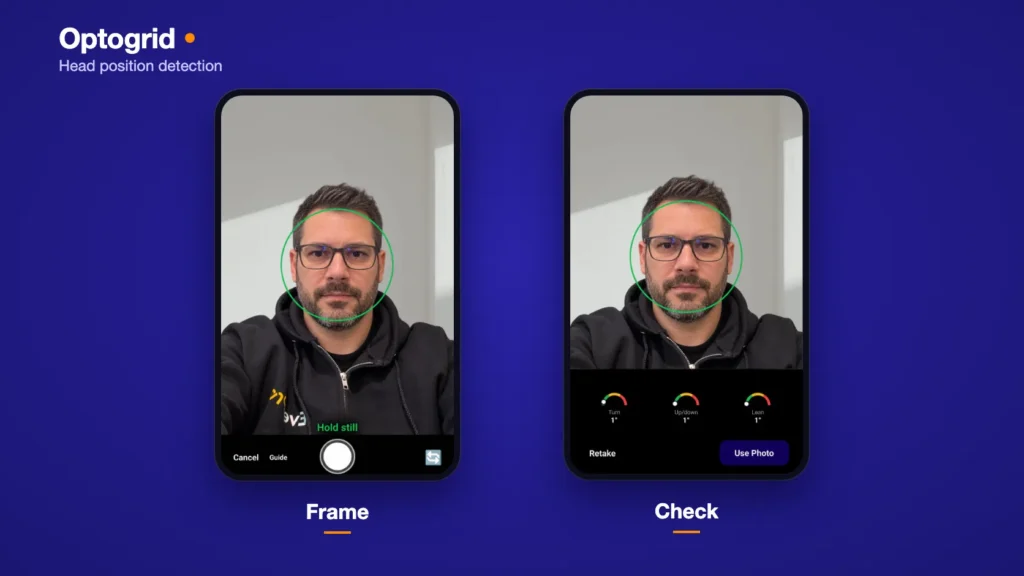
Version 1.1.1 of the Optogrid Android app checks head position before you measure. A ring in the camera shows how the patient should adjust while you frame the shot, and three gauges check the photo again once it is taken. A head turned to one side, tilted, or raised changes where the pupils sit in the photo, and every marker you place afterward inherits that error.
Update Optogrid on Google Play
While You Frame the Photo
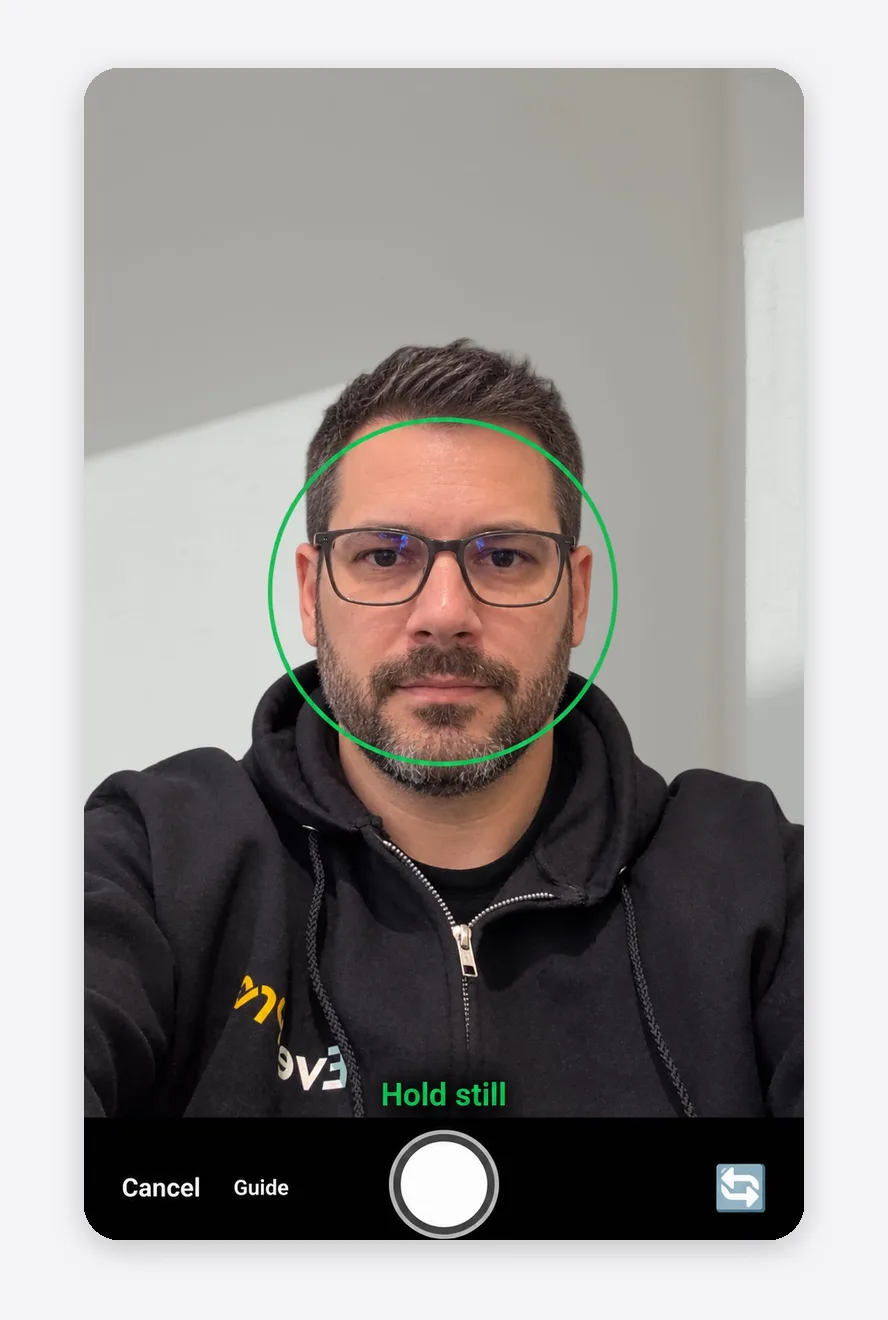
A ring follows the patient’s face in the camera view.
- Green ring, “Hold still”: the head is within tolerance on every axis. The phone vibrates once when the ring first turns green.
- Amber ring, one instruction at a time: the app names the biggest problem, such as “Move closer”, “Move back”, or asking the patient to face the camera. Distance comes first, then the largest angle.
The ring never blocks the shutter and never takes the photo for you. It works with the front and the back camera. Its limits are tighter than the ones used on the finished photo, so a photo taken on a green ring passes with room to spare.
After You Take the Photo
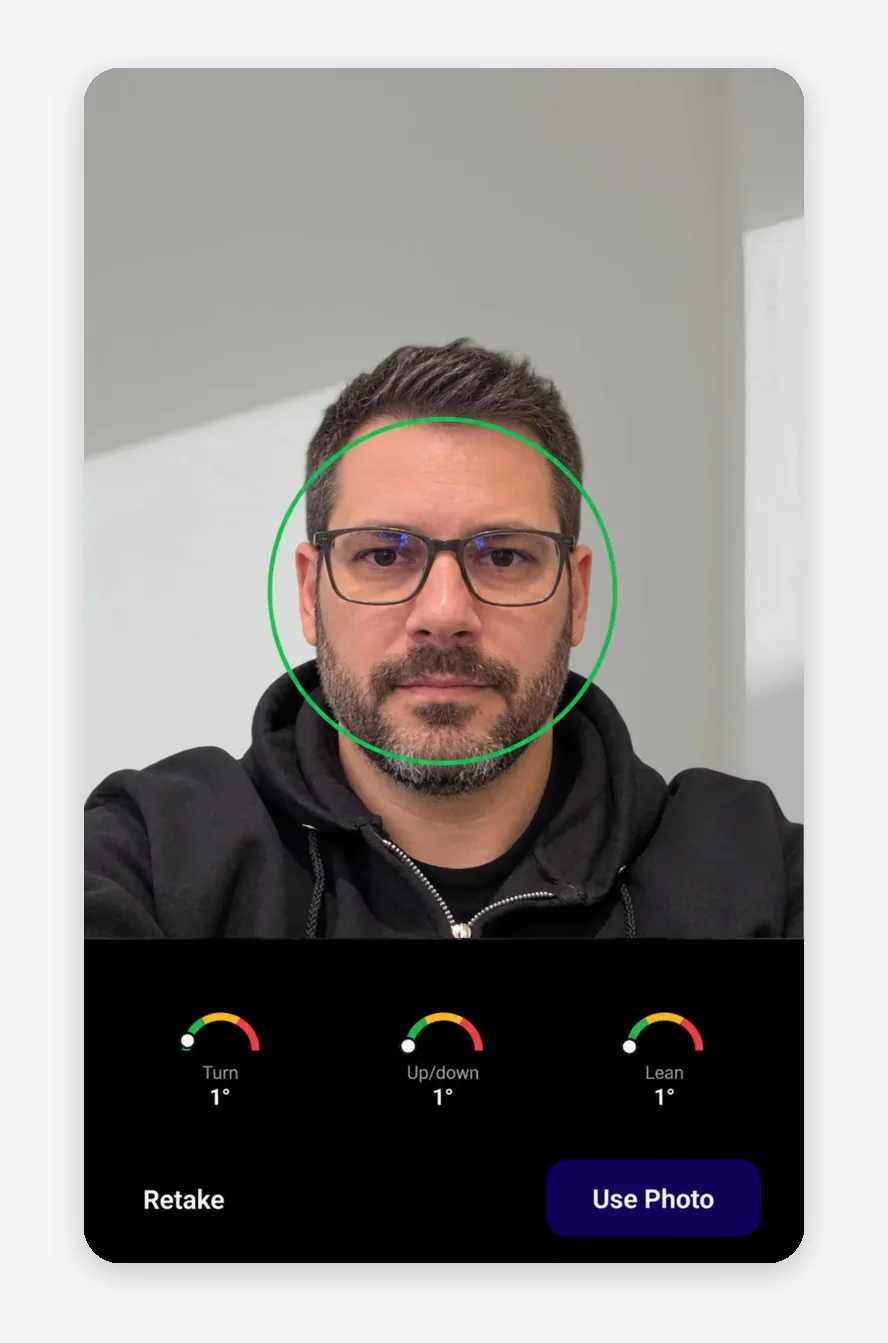
The app checks the photo on three axes and shows a gauge for each one under the preview:
| Gauge | What it measures | Limit |
|---|---|---|
| Turn | Head turned left or right | 10° |
| Up/down | Chin raised or lowered | 15° |
| Lean | Head tilted toward a shoulder | 15° |
Each gauge is green below half its limit, yellow from half the limit up to the limit, and red past it. The app also checks framing: a face cut off at the edge of the photo, too small because the patient is too far away, or too large because they are too close.
- Past a limit: the app asks “Retake this photo?” and gives the reason, for example that the patient is looking up or down. Retake becomes the main button.
- Close to a limit: when a camera photo passes but sits near a limit, a yellow “Almost there” note names the axis that is slightly off. The buttons stay the same.
Gallery photos are checked too. You only see the check for a gallery photo when it needs replacing, and the button then reads “Choose another photo”.
Your Call, Not the App’s
The check warns. It never blocks a measurement. “Use anyway” is always available, and once you use a photo anyway, the app stops raising that same issue for the rest of the session.
The Same Detection Places the Eye Markers
When the photo reaches the measurement screen, the face detection has already placed both eye markers and the center line between them. The markers show a dashed ring until you drag them, and a banner tells you the eyes were detected, so you check them instead of trusting them. The reference and the base line are still yours to place.
If detection confidence was low, the result screen asks you to double-check the eye markers. It never stops you from saving.
In versions 1.0.11 and 1.0.12, the photo check and the automatic eye markers did not run on Android. Version 1.1.1 restores both.
It Runs on the Phone
Head position and eye detection run on the phone itself. If a device cannot run the detection, the camera works without the ring, the photo is accepted as usual, and the app shows a one-time note that the check is not available on that device.
Get the Update
Update to version 1.1.1 on Google Play. The app is Android only for now, and the iOS version is in progress.
The measurement walkthrough covers the full method, and the Android launch post covers everything else the app does. Every release is listed in the changelog.
No account yet? Start free and sign in on the phone with the same credentials.